
Device Desk / 10 min read
Android Installation Checklist: Before You Tap Install
Use a calm five-stage Android installation check covering file identity, device fit, permissions, first launch and the details worth recording.
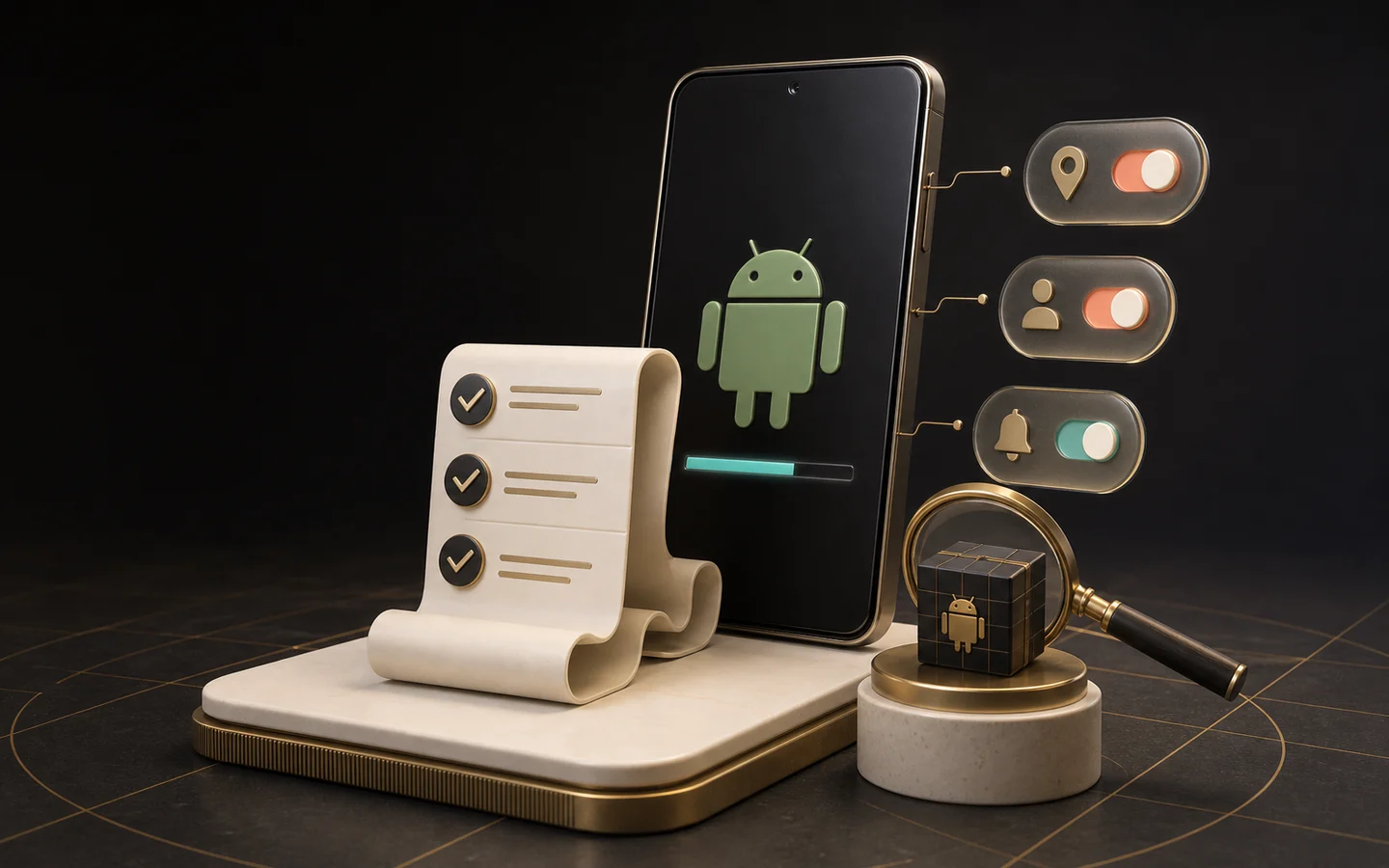
Three things to keep
The short version
- Confirm the destination, app identity and version before opening a package.
- Judge each permission against a feature you understand rather than accepting the list automatically.
- After first launch, review settings and remove installation access you no longer need.
Stage one: run a thirty-second preflight
A useful installation check begins before the Android installer opens. Match the app name and icon with the page you intended to visit, then record the displayed version, file size and destination. If those details are missing or contradict one another, pause the process and return to the source page rather than trying similarly named files.
This preflight is about traceability. A screenshot of the destination, the visible build label and the time of download creates a simple record if you later need to compare an update. It also separates a deliberate install from a file that arrived through an old message, renamed folder or unrelated mirror.
- Match the exact app name and icon.
- Record the visible version and approximate file size.
- Check available storage and the stated Android requirement.
- Keep only one clearly identified installer in the working folder.
Stage two: translate permissions into features
Android permissions control access to restricted data or actions. A permission request is therefore a question, not a quality badge. Translate each request into a feature you recognise: notifications may support turn alerts, microphone access may support voice chat, and photo access may support an avatar. If the relationship is unclear, leave the permission off and see whether the feature remains optional.
Modern Android versions may ask for certain permissions when a feature is first used rather than during installation. That is useful context because the request appears beside the action that triggered it. Review permissions later in system settings as well; an early choice does not need to remain permanent.
| Permission area | Question to ask | Practical response |
|---|---|---|
| Notifications | Do I want time-sensitive app alerts? | Choose a limited alert set |
| Photos / media | Am I selecting an avatar or saving media? | Allow only when needed |
| Microphone | Is a voice feature active? | Keep off outside that feature |
| Contacts / location | Is there a clear, optional feature? | Review with extra care |
Stage three: read the installer screen slowly
The installer is the last moment to confirm that Android recognises the package you expected. Read the displayed app name and update language. If Android presents the action as an update, compare it with the app already installed; an unexpected replacement message is a reason to recheck the package identity.
Installation from outside a default store may require temporary permission for the browser or file manager that opened the package. Treat this as a narrow door: enable it for the intended step, finish the install, then return to settings and close that access when it is no longer part of your normal workflow.
Stage four: make the first launch quiet
Open settings before joining a room. Review sound, vibration, notifications, language and any data-saving option. A quiet first launch makes it easier to notice an unfamiliar prompt and prevents several permission decisions from arriving while the table is already moving.
Avoid reusing an important password in an unfamiliar app. If an account flow asks for information unrelated to the stated feature, step back and use the contact or help information provided by the publisher. This guide offers a reading process, not a package verification result.
Stage five: close the loop
Once the app opens successfully, remove duplicate installers, check the final permission list and note the installed version. If performance is poor, record the exact symptom before switching builds. One clear observation—such as a crash at launch or a missing control—is more useful than repeatedly installing several files without a comparison plan.
Revisit the record when an update appears. Compare the new destination, version label and stated requirement with what is already installed before treating the update as routine. If the app has accumulated permissions that no longer match features you use, remove them and reopen only the relevant feature to see whether Android asks again. This small maintenance habit keeps the original installation decision visible instead of allowing settings, unidentified files and automatic assumptions to accumulate over time.
- Revoke temporary install-source access.
- Review permissions in Android settings.
- Record the installed version and date.
- Keep update decisions tied to release notes and device fit.
Source notes
References used for factual checks
Quick answers
Questions readers ask next
Should every requested permission be enabled?
No automatic rule fits every feature. Match each request to an action you understand, enable only what that action needs and review the decision later in Android settings. Optional features can often remain off until you use them.
Why record the app version after installation?
A version record gives future updates a comparison point. If behaviour changes, you can describe which build was installed, when the change appeared and whether the device or Android version changed at the same time.
What should I do with the installer afterward?
After a successful setup, remove duplicate or unidentified copies and keep only a deliberate record if you genuinely need one. Also close temporary permission for the browser or file manager to install other apps.

Teen Patti Hand Rankings: A Visual Memory Guide
Learn the six common Teen Patti hand categories, how equal categories are compared and which house rules deserve a quick check before a round.
Read article↗
Android Version Compatibility Without the Guesswork
Understand version names, internal build order and Android requirements so an old-versus-current app decision starts with evidence instead of labels.
Read article↗Installation help
Review the installation guide next.
Move from editorial context to a concise identity, device and permission check.
Open Installation Guide